
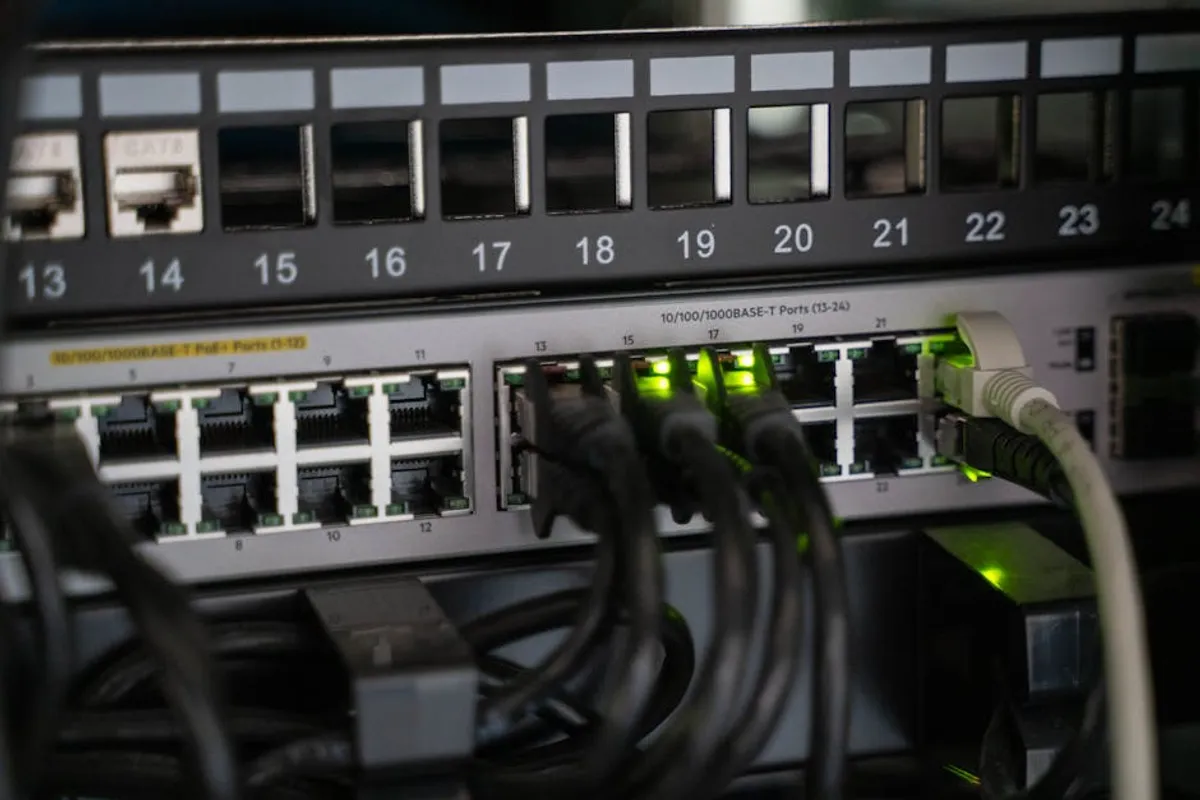
Achieving consistent reliability in a smart home environment hinges significantly on the underlying network infrastructure, with the Wi-Fi router serving as the central nervous system. While smart devices offer convenience, their performance often falters due to suboptimal router configurations, leading to dropped connections, delayed responses, and general instability. This isn't solely a hardware limitation; often, the difference between a frustrating and a fluid smart home experience lies in a few critical adjustments to your router's operational parameters. Understanding and implementing these specific settings allows for a robust, secure, and responsive network tailored to the unique demands of numerous connected devices, ensuring your smart home functions as intended rather than intermittently.
Optimizing Your Router for Smart Home Demands
Before diving into specific adjustments, understand that effective smart home network management involves a holistic approach. Key considerations include minimizing wireless interference, ensuring adequate signal strength across all device locations, segmenting your network for security, and prioritizing critical device traffic. The goal is not merely connectivity, but consistent, low-latency communication for every sensor, light, and appliance. This requires a proactive stance on network configuration, moving beyond default settings to create an environment where smart devices can operate without contention or signal degradation. Evaluate your home's layout, the density of smart devices, and potential sources of interference from neighboring networks or other electronics. A strategic approach to these factors forms the bedrock for any successful smart home setup.
1. Regular Firmware Updates
Router firmware is the operating system that controls its functions. Manufacturers frequently release updates to patch security vulnerabilities, improve performance, and add compatibility with newer wireless standards or devices. For smart homes, outdated firmware can lead to dropped connections, slow data transfer, and compatibility issues with specific IoT devices that rely on the latest protocols. Keeping firmware current ensures your router operates with the most stable and secure software available, directly impacting the reliability and security of all connected smart devices.
Best for: Enhancing security, improving compatibility, and resolving known bugs that affect network stability and device communication.
Pros: Reduces security risks, often improves Wi-Fi performance, can add new features, and ensures broader device compatibility.
Cons: Requires manual intervention or configuration for automatic updates; incorrect update procedures can potentially brick the device if not followed carefully.
Verdict: This is a foundational, non-negotiable step for any network. Prioritize checking for and installing updates immediately upon setup and then on a quarterly basis to maintain optimal performance and security.
2. Optimal Wi-Fi Channel Selection (2.4 GHz)
The 2.4 GHz band, while offering greater range and penetration through obstacles, is often congested. It uses 11 channels in North America, but only channels 1, 6, and 11 are non-overlapping. When multiple routers in close proximity (e.g., in apartment buildings) operate on the same channel, it creates interference, leading to slower speeds and dropped connections for smart devices. Manually selecting a less congested channel can significantly improve signal quality and stability for devices that primarily use this band, such as many smart plugs, sensors, and older IoT gadgets.
Best for: Improving connectivity for range-dependent or older smart devices susceptible to interference, especially in dense residential areas.
Pros: Directly reduces interference, leading to more stable connections and improved responsiveness for 2.4 GHz devices. No cost involved.
Cons: Requires occasional re-evaluation as neighboring networks change; finding a truly "empty" channel can be challenging in crowded environments.
Verdict: Use a Wi-Fi analyzer tool to identify the least congested channel (1, 6, or 11) and configure your router accordingly. This simple change yields immediate, measurable improvements for many smart home devices.
3. Optimal Wi-Fi Channel Selection (5 GHz)
The 5 GHz band offers higher speeds and more non-overlapping channels (typically 23), making it less susceptible to interference than 2.4 GHz. However, its shorter range and poorer wall penetration mean device placement is critical. For smart home devices that require higher bandwidth (e.g., smart cameras streaming HD video), ensuring they connect to a clear 5 GHz channel is vital. Avoiding dynamic frequency selection (DFS) channels if possible, or understanding their limitations, can prevent sudden disconnections due to radar detection.
Best for: Optimizing performance for bandwidth-intensive smart devices like security cameras, smart displays, and media streamers located closer to the router.
Pros: Significantly reduces interference compared to 2.4 GHz, leading to faster and more reliable connections for compatible devices.
Cons: Shorter range and poorer penetration mean devices further from the router may struggle; some IoT devices do not support 5 GHz.
Verdict: For devices supporting 5 GHz, manual channel selection (avoiding DFS channels if unexplained drops occur) provides a performance boost. Prioritize this for devices where latency and bandwidth are critical.
4. Dedicated IoT Network (Guest Network)
Many routers allow for the creation of a separate guest Wi-Fi network, which can be repurposed as a dedicated network for smart home devices. This isolates IoT devices from your primary network, enhancing security by preventing potential breaches on an insecure smart device from propagating to your computers or personal data. It also helps manage network congestion, as smart devices often communicate differently than general computing devices, reducing potential conflicts on the main network.
Best for: Enhancing security, segmenting network traffic, and providing a controlled environment for potentially vulnerable smart devices.
Pros: Significantly improves security posture, simplifies network management, and can prevent IoT device issues from affecting primary network stability.
Cons: Some smart devices or hubs may have difficulty communicating across separate networks if not configured correctly (e.g., mDNS/Bonjour issues); may require additional router configuration.
Verdict: A highly recommended security measure. Isolate your smart devices on a guest network with its own password. Ensure your router supports client isolation on the guest network for maximum security.
5. Quality of Service (QoS) Prioritization
Quality of Service (QoS) settings allow you to prioritize certain types of network traffic over others. In a smart home, this means you can ensure that critical commands to smart lights, security sensors, or video streams receive preferential bandwidth, even when other devices are consuming significant network resources (e.g., during a large file download). Properly configured QoS prevents essential smart home functions from being delayed or interrupted due to network congestion.
Best for: Ensuring critical smart home functions remain responsive and reliable during periods of high network usage, especially with bandwidth-intensive devices.
Pros: Guarantees bandwidth for essential smart home traffic, reduces latency for critical commands, and improves overall system responsiveness.
Cons: Incorrect configuration can negatively impact other network traffic; requires understanding of device traffic patterns; not all routers offer granular QoS controls.
Verdict: If your smart home experiences slowdowns or unresponsiveness during peak network activity, configure QoS to prioritize your smart home hub and critical devices. Focus on prioritizing traffic by device IP or MAC address.
6. DHCP Reservation for Key Devices
DHCP (Dynamic Host Configuration Protocol) automatically assigns IP addresses to devices on your network. While convenient, this can lead to devices receiving new IP addresses periodically, potentially causing communication issues for some smart home hubs or services that expect a consistent address. DHCP reservation allows you to assign a permanent, static IP address to specific devices. This ensures consistent communication paths, reducing connection drops and improving the reliability of smart home integrations that rely on fixed IP addresses.
Best for: Ensuring consistent connectivity for smart home hubs, network storage, and other critical devices that benefit from a fixed IP address.
Pros: Prevents IP address conflicts, improves reliability for devices that act as servers or hubs, and simplifies network troubleshooting.
Cons: Requires manual configuration for each device; can become cumbersome with a very large number of devices; not strictly necessary for all smart devices.
Verdict: Implement DHCP reservation for your smart home hub, security cameras, and any other devices that are central to your smart home's operation. This provides a stable foundation for inter-device communication.
7. Disabling Universal Plug and Play (UPnP)
Universal Plug and Play (UPnP) is a protocol designed to allow devices on a network to discover each other and establish direct communication without manual configuration. While convenient for gaming consoles or media servers, UPnP poses a significant security risk. It can automatically open ports on your router's firewall, potentially exposing smart devices to the internet without your knowledge or consent. Disabling UPnP removes this vulnerability, requiring manual port forwarding only for services that explicitly need it, thereby enhancing the overall security of your smart home network.
Best for: Significantly improving network security by preventing unauthorized port openings and reducing the attack surface for smart devices.
Pros: Closes a major security vulnerability, provides greater control over network access, and reduces the risk of external exploits targeting smart devices.
Cons: May require manual port forwarding for specific applications or devices that rely heavily on UPnP for external access (e.g., some gaming or P2P applications).
Verdict: For maximum security, disable UPnP. If a specific smart device or service requires port forwarding, configure it manually with the least permissive settings possible. Security outweighs convenience here.
8. Adjusting Transmit Power
Most routers allow you to adjust the transmit power of their Wi-Fi radios. While the default is often 100%, reducing transmit power can be beneficial in certain scenarios. In smaller homes or apartments, lowering the power can reduce interference with neighboring networks and minimize signal bounce, leading to a cleaner signal for your own devices. Conversely, in larger homes with dead zones, increasing transmit power (if not already at maximum) can extend coverage, though this should be balanced against potential interference with nearby networks and regulatory limits.
Best for: Fine-tuning Wi-Fi coverage to eliminate dead zones or reduce interference in dense environments, optimizing signal quality for specific device locations.
Pros: Can improve signal quality by reducing noise; extends coverage in larger homes; helps manage interference in crowded areas.
Cons: Too low power creates dead zones; too high power can increase interference for others; not all routers offer granular control over transmit power.
Verdict: Experiment with transmit power. In smaller, dense areas, try reducing it to 75% or 50% for a cleaner signal. In larger homes, ensure it's at 100% and consider additional access points if dead zones persist.
9. Enabling WPA3/WPA2-PSK (AES) Encryption
Wi-Fi Protected Access (WPA) is a security protocol that encrypts wireless communication. WPA3 is the latest and most secure standard, offering stronger encryption and improved protection against brute-force attacks. If your router and smart devices support WPA3, enable it. If not, ensure you are using WPA2-PSK with AES encryption, which is still robust. Avoid older standards like WPA or WEP, as they are easily compromised and leave your smart home vulnerable to eavesdropping and unauthorized access, compromising data privacy and device integrity.
Best for: Protecting all wireless communications within your smart home from unauthorized interception and ensuring the highest level of network security.
Pros: Provides robust encryption for all wireless traffic, prevents unauthorized access to your network, and safeguards personal data and device commands.
Cons: Older smart devices may not support WPA3 and require WPA2; using older, weaker encryption for compatibility creates security gaps.
Verdict: Prioritize WPA3 if all your devices support it. Otherwise, use WPA2-PSK (AES) as the minimum standard. Never use WPA or WEP for any network where smart devices are connected.
10. Strategic Router Placement
The physical location of your router dramatically impacts Wi-Fi signal strength and coverage. Placing the router in a central, elevated location within your home, away from obstructions like thick walls, large metal objects (appliances, filing cabinets), and other electronics that emit electromagnetic interference (e.g., microwaves, cordless phones), maximizes signal propagation. A well-placed router minimizes dead zones and ensures a strong, stable connection for all smart devices, reducing the need for signal repeaters or mesh systems.
Best for: Maximizing Wi-Fi signal coverage and strength throughout your home without additional hardware, directly improving device connectivity.
Pros: Cost-free improvement, often yields significant increases in signal strength and coverage, reduces dead zones, and improves overall network stability.
Cons: Limited by home layout and available power outlets; may require compromises in aesthetics; cannot overcome extreme physical barriers.
Verdict: Relocate your router to the most central, elevated point possible, away from interference sources. This simple change is often the most impactful for improving smart home stability.
11. Band Steering / Smart Connect Configuration
Many modern dual-band or tri-band routers feature "band steering" or "smart connect" technologies. These allow the router to intelligently guide client devices to the most appropriate Wi-Fi band (2.4 GHz or 5 GHz) based on signal strength, congestion, and device capabilities. For smart homes, this can prevent devices from stubbornly clinging to a slow 2.4 GHz connection when a faster 5 GHz band is available, or vice-versa, ensuring optimal performance across your diverse range of smart devices without manual intervention.
Best for: Automatically optimizing device connections across available Wi-Fi bands, simplifying network management, and improving overall network efficiency for mixed device environments.
Pros: Automates band selection for optimal performance, can improve device roaming, and reduces manual configuration efforts.
Cons: Some older smart devices may not interact well with band steering and might experience connection issues; can sometimes be overly aggressive in switching bands, leading to brief disconnections.
Verdict: Enable band steering if your router supports it and your smart devices are generally modern. If specific devices exhibit connection issues, consider disabling it and manually assigning bands via separate SSIDs.
12. Disabling Wi-Fi Multimedia (WMM) Power Save (for specific devices)
Wi-Fi Multimedia (WMM) is a QoS feature that prioritizes network traffic for multimedia applications. It includes a power-saving mode for devices, allowing them to enter a low-power state when not actively transmitting data. While beneficial for battery life on laptops and phones, some specific smart home devices, particularly those with older or less robust Wi-Fi chipsets, can struggle to reliably wake from this power-saving state, leading to missed commands or dropped connections. Disabling this specific WMM power-save feature (if available in your router settings) can resolve intermittent connectivity for problematic IoT devices.
Best for: Resolving intermittent connectivity issues or unresponsiveness in specific smart home devices that struggle with Wi-Fi power-saving modes.
Pros: Can provide a direct fix for specific problematic smart devices that frequently disconnect or become unresponsive due to power-saving features.
Cons: Not all routers offer granular control over WMM power save; disabling WMM entirely can impact QoS for other multimedia traffic; may slightly increase power consumption for some devices.
Verdict: Only consider disabling WMM power save if you have specific smart devices exhibiting persistent, inexplicable connection drops. This is a targeted fix, not a general recommendation, as WMM is generally beneficial.
Measuring Success and Ongoing Maintenance
After implementing these router settings, monitor your smart home's performance. Success is measured by reduced device unresponsiveness, fewer dropped connections, and consistent operational uptime for all components. Utilize your smart home app's device status indicators and your router's client list to confirm stable connections. Network monitoring tools, even simple ones like ping tests from a computer on your network, can help identify latency issues. Regularly check router logs for unusual activity or connection errors. An optimized smart home network is not a set-it-and-forget-it endeavor; periodic review of channel congestion, firmware updates, and device connectivity ensures sustained stability. Document your changes, test systematically, and iterate as your smart home ecosystem evolves or new interference sources emerge.
Frequently Asked Questions
How often should I review my router settings for my smart home?
Review your router settings at least quarterly, or whenever you add a significant number of new smart devices, experience persistent connectivity issues, or notice general network slowdowns. Regularly check for firmware updates monthly.
Will these settings make my internet faster for all devices?
While these settings primarily target smart home stability and responsiveness, optimizing Wi-Fi channels, using WPA3/WPA2 (AES), and implementing QoS can contribute to a more efficient and potentially faster overall network experience by reducing congestion and interference.
What if my router doesn't have all these specific settings?
Router features vary widely by model and manufacturer. Focus on the settings available to you, prioritizing firmware updates, channel selection, and strong encryption. Consider upgrading to a more capable router if you consistently face limitations with advanced smart home configurations.
How do I access my router's settings?
Typically, you access your router's settings by typing its IP address (e.g., 192.168.1.1 or 192.168.0.1) into a web browser. The login credentials are usually found on a sticker on the router itself or in its manual. If you've changed them, use your custom credentials.
Should I restart my router regularly for better smart home stability?
A regular restart (e.g., once a month) can clear temporary glitches, refresh network connections, and free up router memory, often improving overall stability for both your smart home and general internet usage. This is a good general maintenance practice.